Flows
Flow Editor Overview
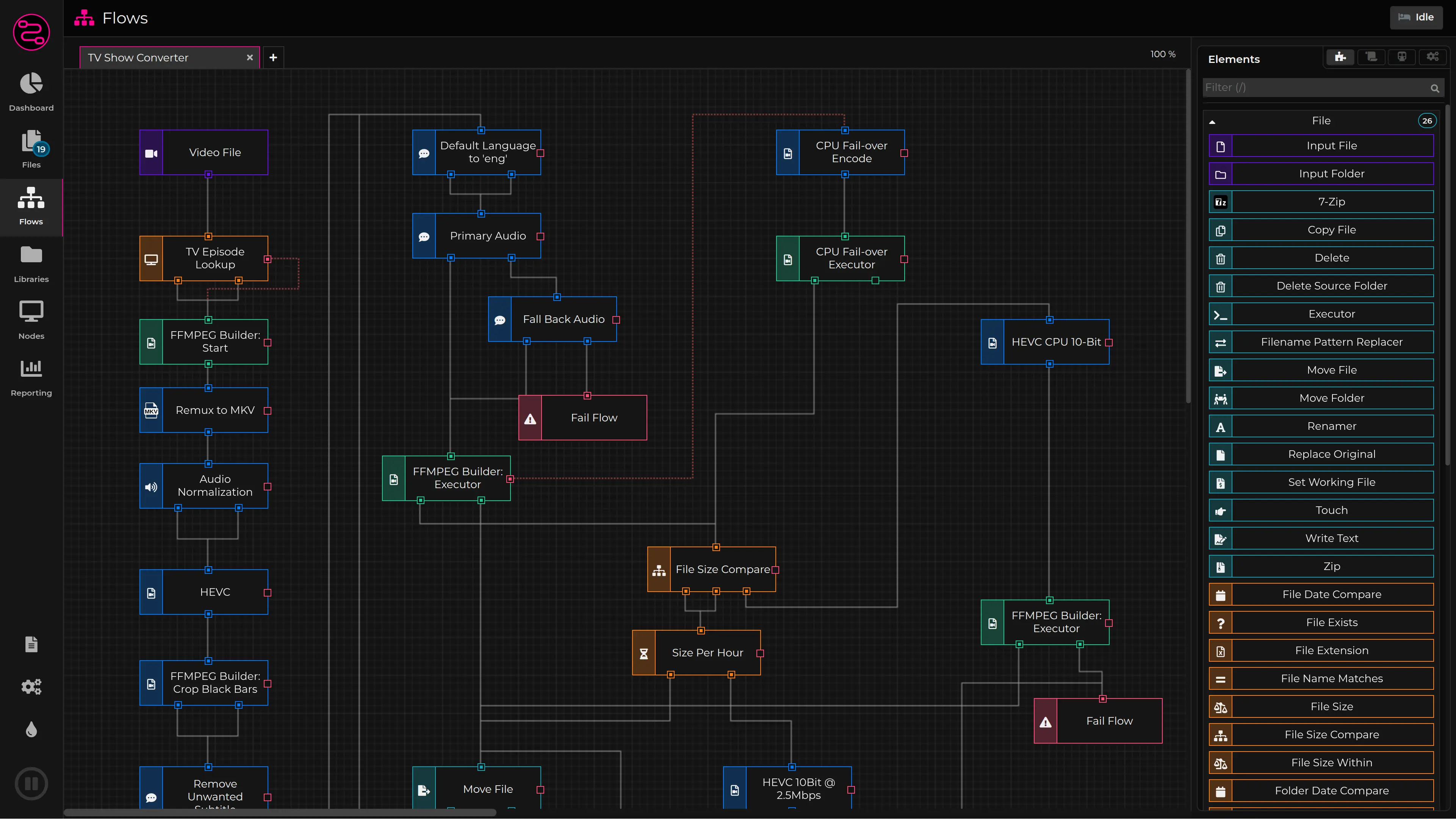
Flows are the visual pipelines at the heart of FileFlows. Instead of writing scripts or configuring complex rules, you design flows by dragging and dropping flow elements onto a canvas and connecting them together. Each flow defines what happens to your files—from the moment they arrive until they're processed, organized, or converted.
A single flow can handle anything from a quick video transcode to a multi-step media pipeline with conditional branching, loops, and custom logic. Once built, flows are reusable—assign the same flow to multiple libraries across your servers.
Flow Editor
Key Concepts
- Inputs – Every flow starts with an Input flow element (e.g., Input File, Video File). This is the entry point where files enter the pipeline.
- Processors – The flow elements that do the work: transcode video, resize images, convert audio, run scripts, move files, and more.
- Conditions & Branching – Route files down different paths based on properties like resolution, codec, file size, or custom expressions.
- Outputs – Terminal flow elements that complete processing, firing based on the result of the preceding element (e.g., "processed" vs. "skipped").
- Failure Flow – A special flow that runs when any flow encounters an error, typically used to send notifications or log failures.
Learn More
For a deeper dive into building flows, see the following pages:
- Flow Editor – The visual drag-and-drop editor, how connections work, and a step-by-step example
- Failure Flow – Handling errors and setting up notifications
- Flow Properties – Configuration options available on each flow
- Sub Flows – Reusing flows within other flows