Audio
When you add an audio file to Flux, the conversion dialog lets you tune exactly how it should be processed. At the top of the dialog is a Local / FileFlows toggle:
- Local — Process the audio directly inside Flux using the options below.
- FileFlows — Send the audio to a FileFlows Server using the formula configured on the server.
Some advanced options (such as loudness normalization) are only available when processing through a FileFlows Server, because they rely on server-side plugins.
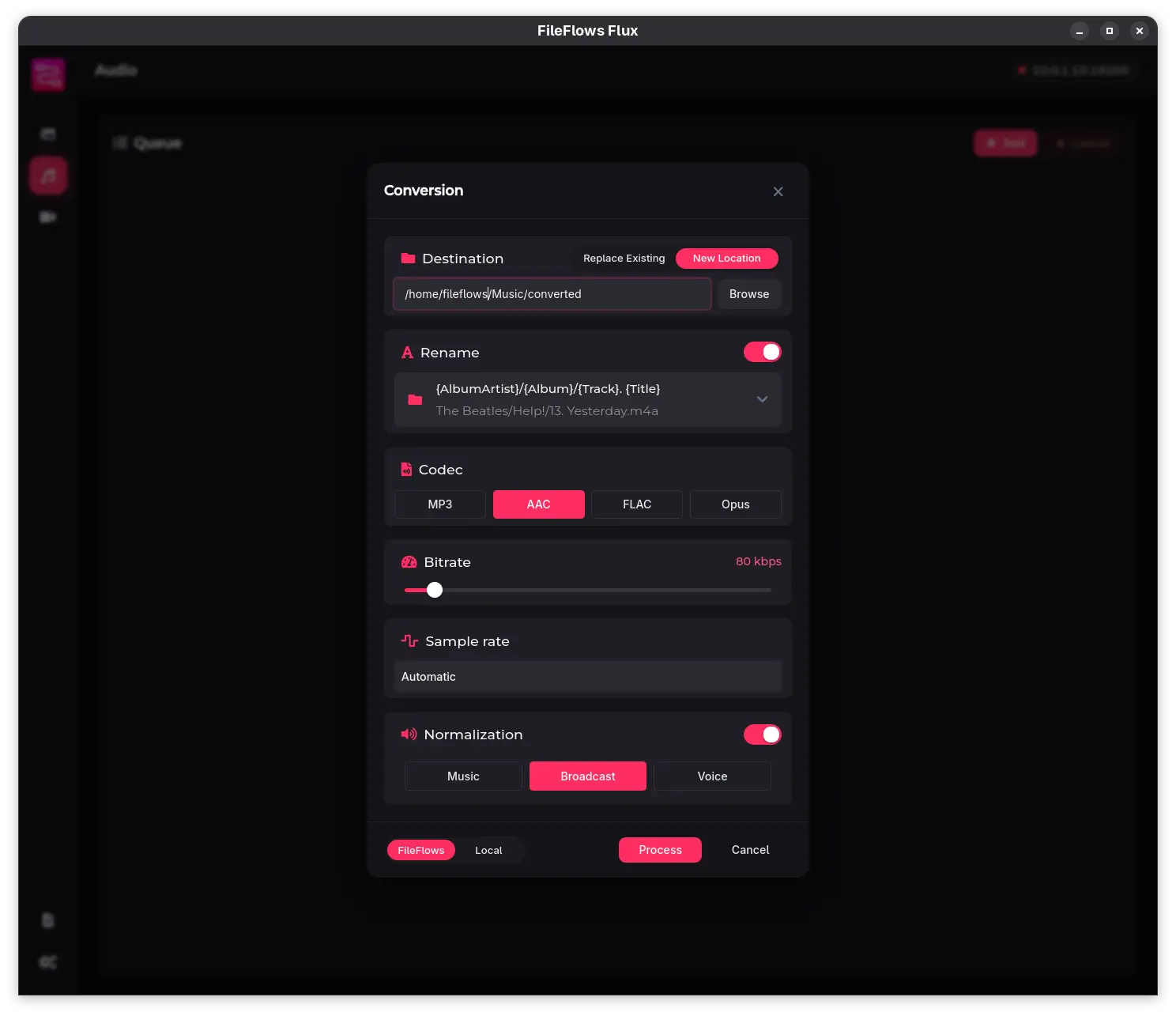
Codec
| Codec | Extension | Notes |
|---|---|---|
| MP3 | mp3 | Universal compatibility. |
| AAC | m4a | Efficient compression; ideal for Apple devices. |
| FLAC | flac | Lossless compression; no quality loss. |
| Opus | opus | Best compression-to-quality ratio for speech and music. |
Bitrate
Set the target audio bitrate in kbps. Higher values preserve more detail but increase file size.
Sample rate
Choose an output sample rate or leave it on Automatic to match the source. Common options include 44100 Hz, 48000 Hz, and 96000 Hz.
Normalization
When processing through a FileFlows Server, you can apply loudness normalization:
- Music — Target loudness for music playback.
- Broadcast — Target loudness for broadcast standards.
- Voice — Target loudness for spoken-word content.
Local processing currently does not apply normalization; it is handled by the server-side audio flow.
Rename format
Rename output audio files using metadata placeholders such as {AlbumArtist}, {Album}, {Track}, {Title}, {Year}, and {Codec}.