Images
When you add an image to Flux, the conversion dialog lets you tune exactly how it should be processed. At the top of the dialog is a Local / FileFlows toggle:
- Local — Process the image directly inside Flux using the options below.
- FileFlows — Send the image to a FileFlows Server using the formula configured on the server.
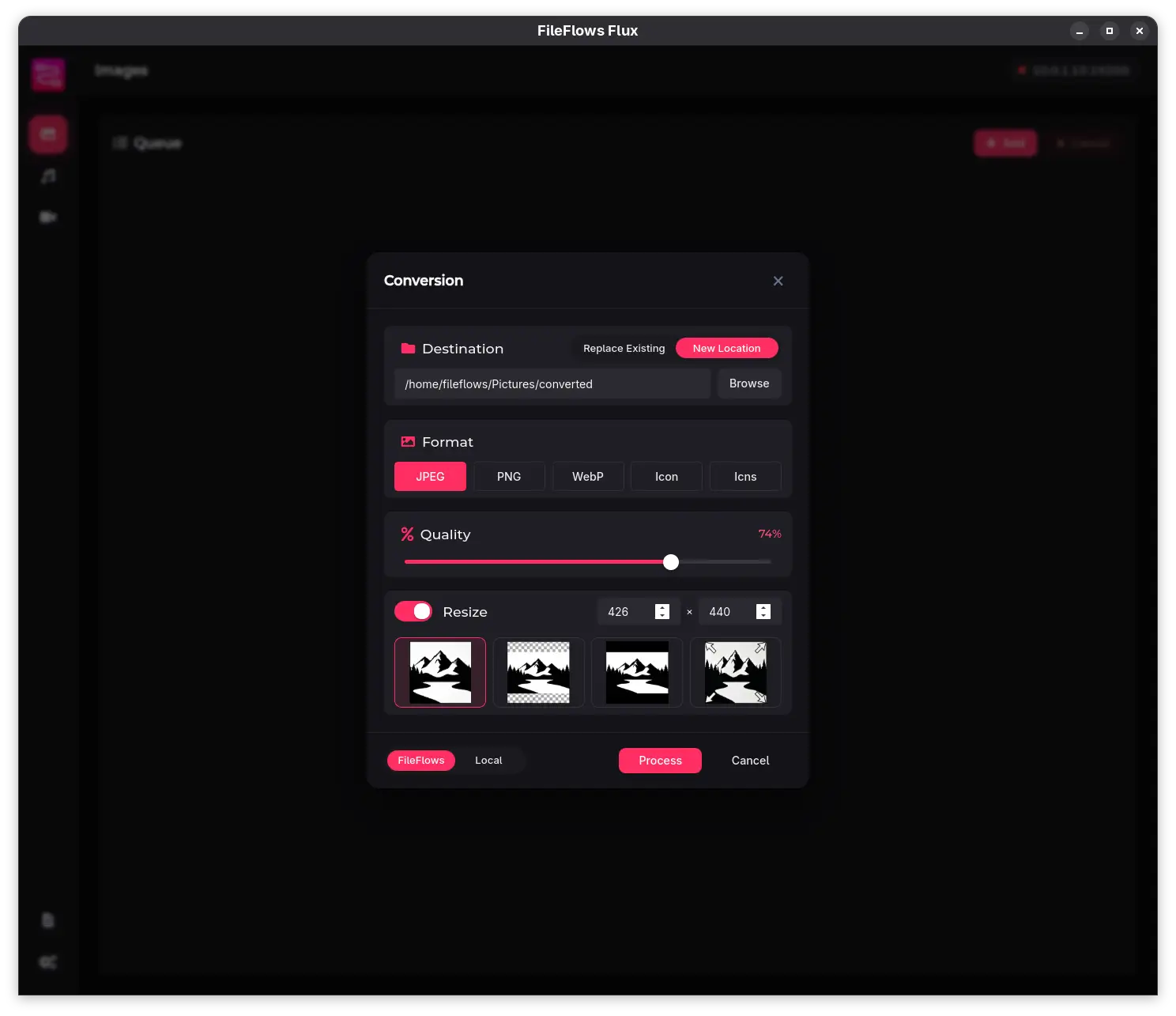
Format
| Format | Notes |
|---|---|
| JPEG | Good for photographs and realistic images. |
| PNG | Lossless; supports transparency. |
| WebP | Modern format with superior compression and transparency support. |
| Icon | Windows icon format (.ico) with multiple embedded sizes. |
| Icns | Apple icon format (.icns). |
Quality
For JPEG and WebP, you can set a quality level from 1 to 100. Higher values preserve more detail but increase file size.
Resize mode
| Mode | Description |
|---|---|
| Off | Keep the original dimensions. |
| Contain | Scale the image to fit inside the target dimensions, preserving aspect ratio. May add padding. |
| Cover | Scale the image to cover the target dimensions, preserving aspect ratio. May crop edges. |
| Pad | Scale the image to fit inside the target dimensions and pad the remaining space. |
| Fill | Stretch the image to exactly match the target dimensions, ignoring aspect ratio. |
Dimensions
Set the target width and height in pixels. The behavior depends on the selected resize mode.